





MY EVENTS
Creating a New Event
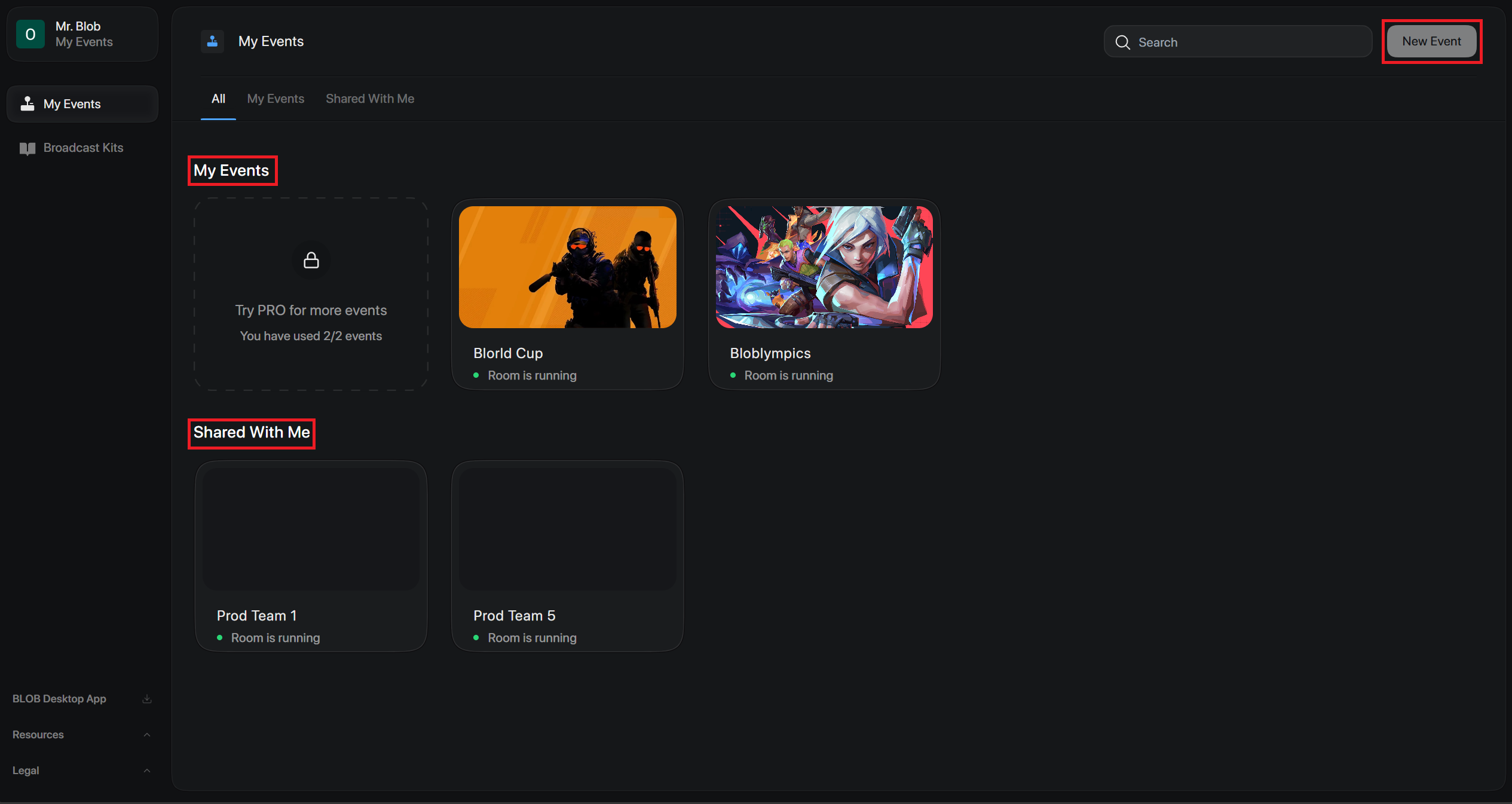
New Event: Click New Event (top right) or the transparent box under My Events.
Return Home: Click the top-right three dots from any event dashboard and select Home.
Assigning Seats
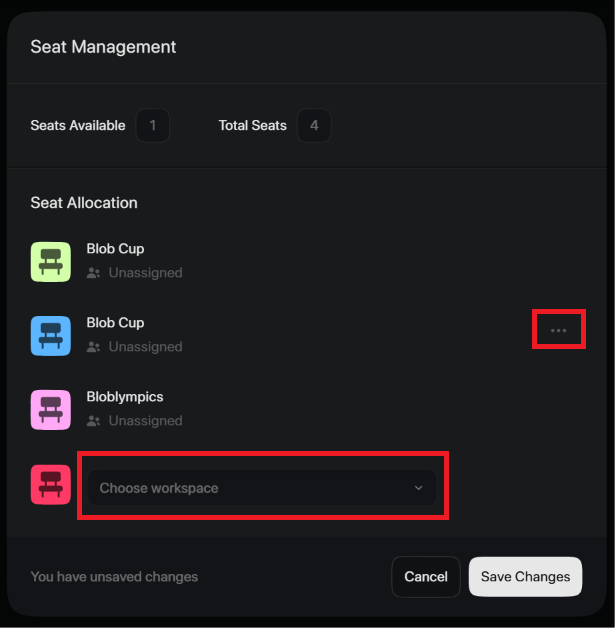
Seats control how many users can edit an event workspace based on your subscription. Production team members who only need to join via Desktop Connection do not need a seat.
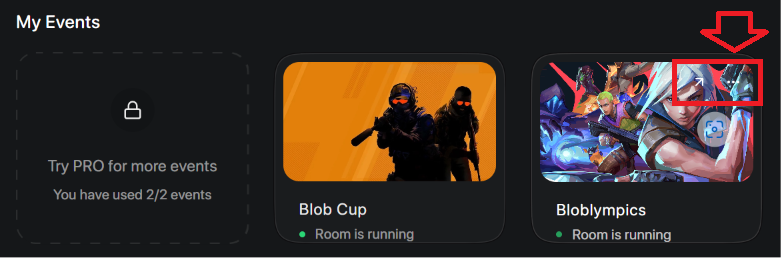
- Hover over an event cover image and click the three dots.
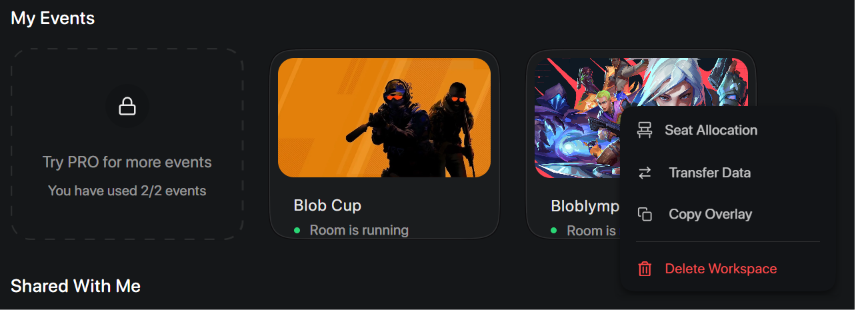
- Select Seat Allocation.
- Use the Choose Workspace dropdown to assign a seat.
- Click the three dots next to a seat to reassign or unassign it, then save.
Transferring Data
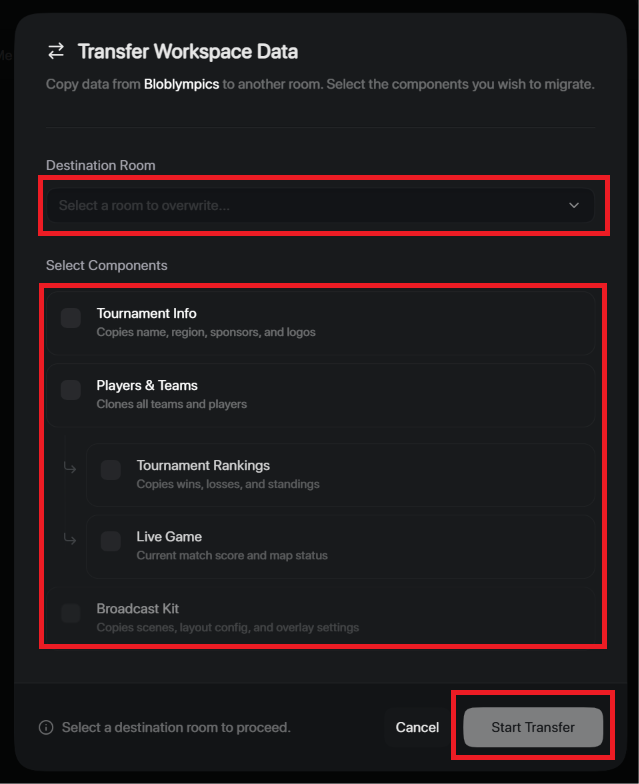
You can also transfer specific data from an event over to another.
- Hover over the source event and click the three dots.
- Select Transfer Data.
- Choose the destination event and the data to send.
- Click Start Transfer.